 Click here to complete
 Getting Started with Microsoft Teams
To attend the MEPS video interview on Microsoft Teams, you need one of the following:
• A computer, such as a laptop or desktop, with both a working camera and a microphone,
• A tablet, such as an iPad or Kindle, or
• An iPhone, Android, or other type of smartphone
Download the Teams App on your Mobile Device:
If you’re using a mobile device (smartphone or tablet), you will need to install the Teams app. The app is free to download. Follow the instructions below to download the app on your mobile device:
• From your mobile device, click on this link: https://teams.live.com/free
• The link will open to prompt you to download Teams for free. Click on the Download the Teams app button.
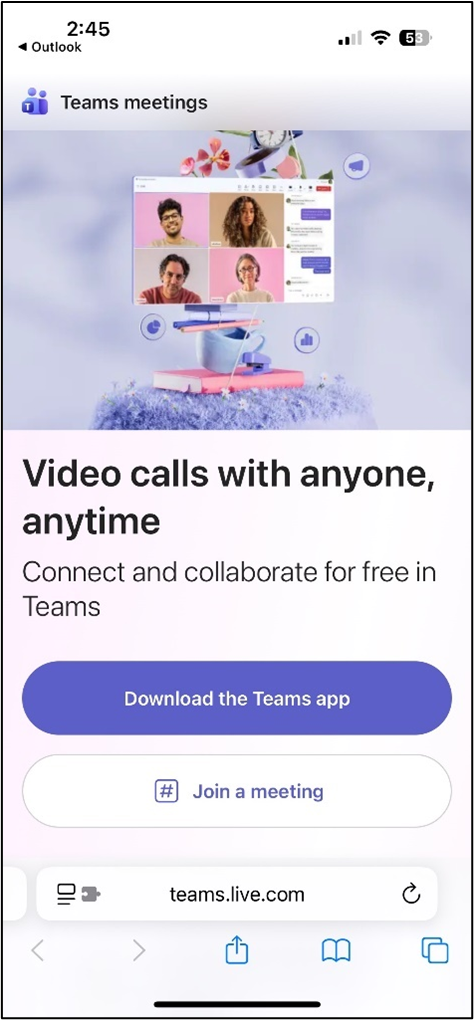
• Your mobile device will direct you to the App store or the Google Play Store or wherever you download apps. Proceed to download the app.
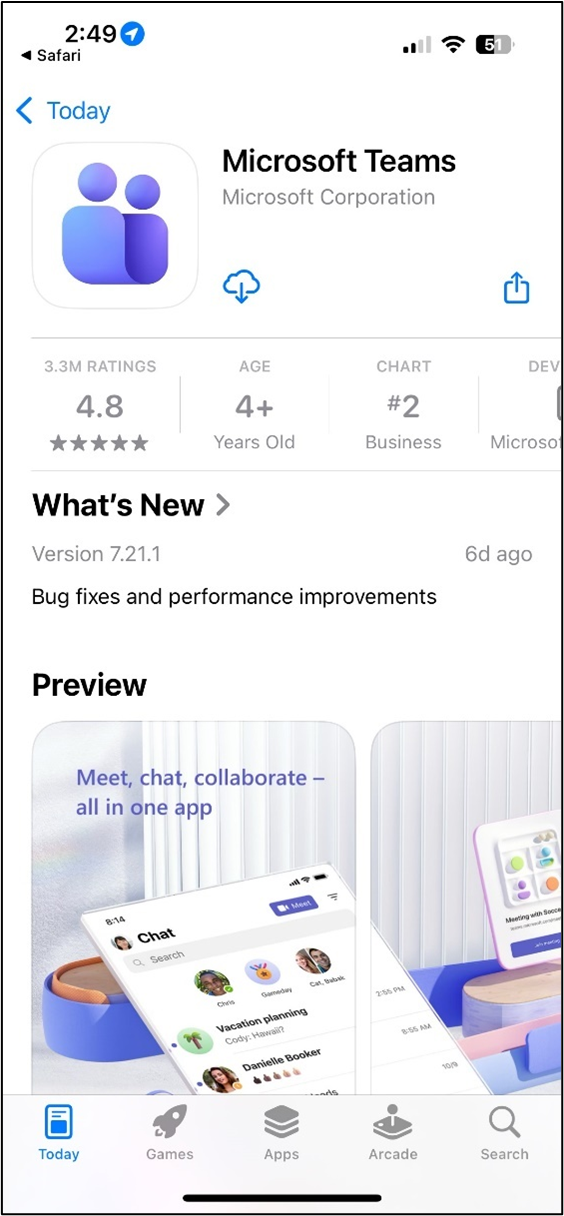
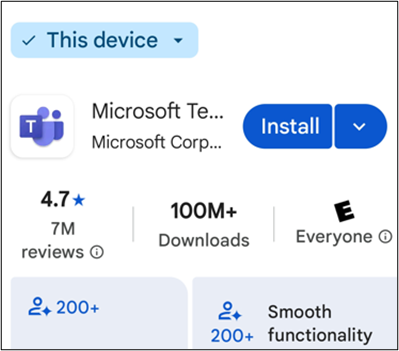
• Once you download the app, go back to the interviewer’s email with the link to join the meeting. Below are the instructions on how to join the Teams meeting depending on whether you’re using your smartphone or mobile device or your laptop/desktop computer.
Join the meeting using your Laptop/Desktop Computer:
• If you are using a desktop or laptop computer, you can use Teams without downloading the Teams app. Teams will likely prompt you to download the app, but you can skip this step and join the meeting without downloading the app.
• You DO NOT need a Microsoft or Teams account to connect to the Teams interview.
• Simply click on the hyperlink from the interviewer’s confirmation or reminder email
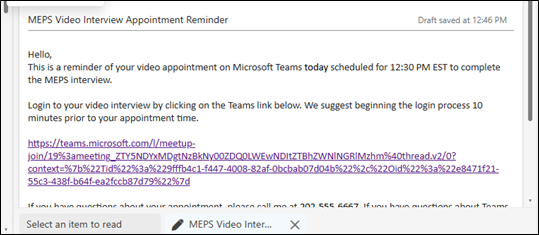
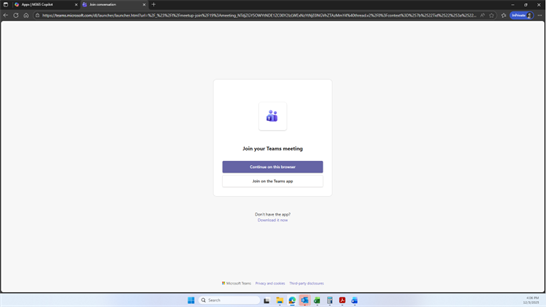
• You will be taken to your internet browser to a webpage that says Join your Teams Meeting, with the option to download the Teams app or to join using the browser. Click on the Continue on this browser option if you’d rather not download Teams on your laptop/computer.
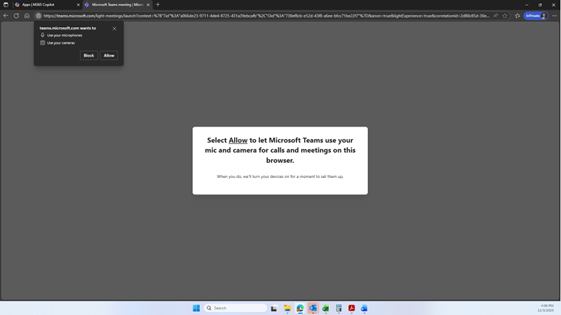
• Allow Teams to use your microphone and camera for calls and meetings on this browser by clicking Allow on the pop-up that appears.
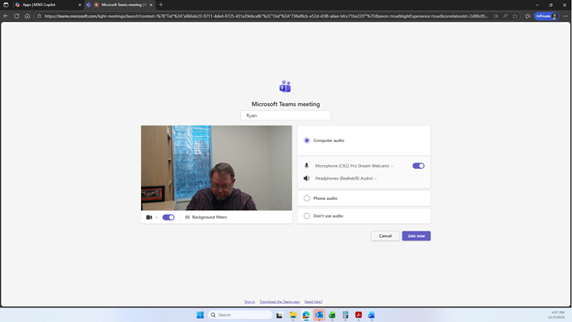
• Turn your camera on by toggling underneath the thumbnail video of yourself so that it’s purple. To turn it off toggle it the other direction (to the left) and it will turn gray, and your camera will turn off.
• The computer audio should automatically connect to your computer microphone but if you have speakers or a Bluetooth-enabled headset, you can select the one you want. Press the Join now button when you’re ready to join.
If you need help with this step, call the MEPS CAVI Support Hotline at 1-855-516-3945 or email MEPSHelp@westat.com.
Join from meeting from your smartphone or mobile device:
• If you are using a smartphone or mobile device, you must download the Teams app. Follow the instructions above to download the Teams app for free
• You DO NOT need a Microsoft or Teams account to connect to the Teams interview even on the app
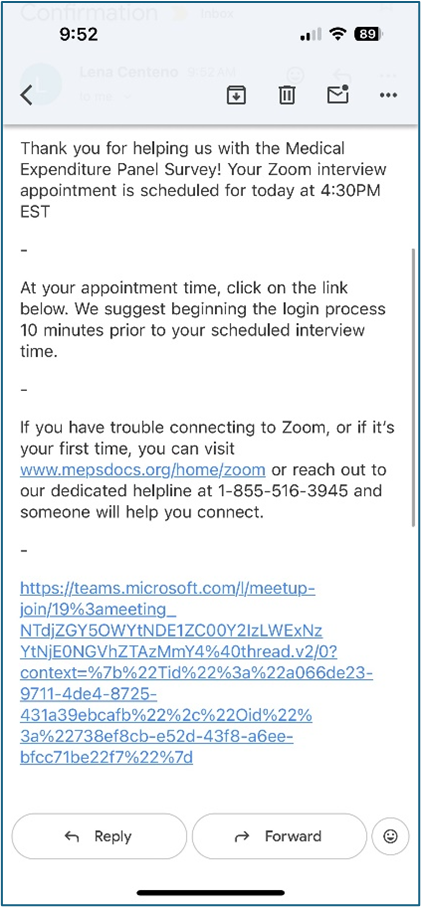
• Navigate to the email confirmation or reminder the MEPS interviewer sent you or to the text message with the link the interviewer sent and click on the hyperlink.
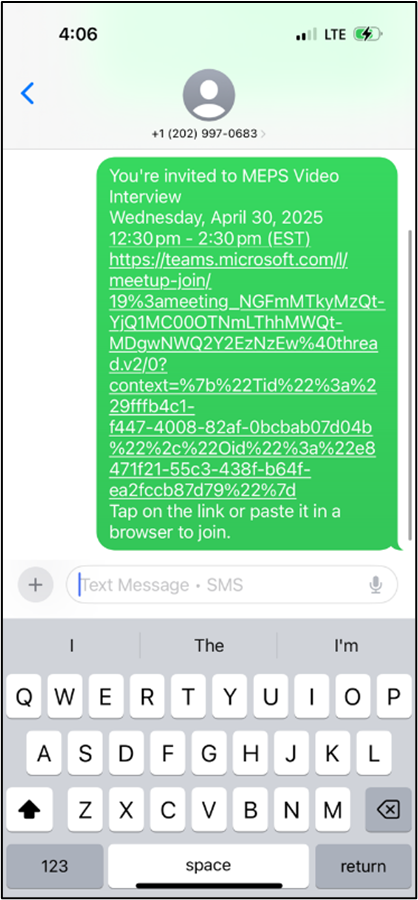
• If prompted, allow Teams to use your microphone and access your video. and use your microphone. If Teams requests access to make phone calls or to allow the ability to record meetings, deny access.
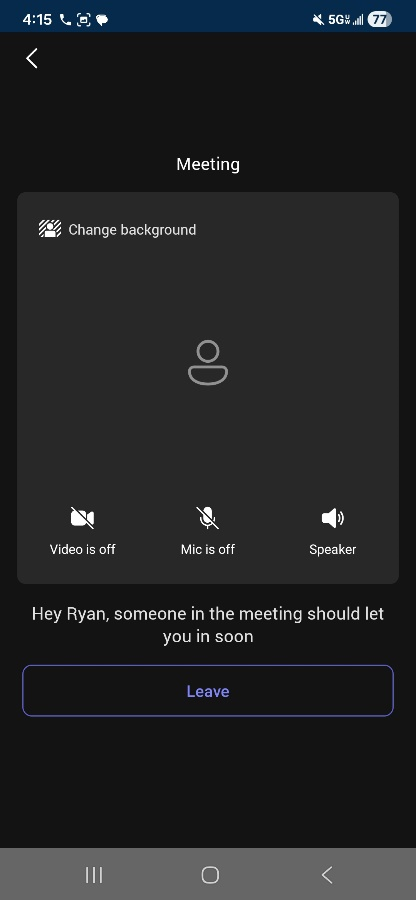
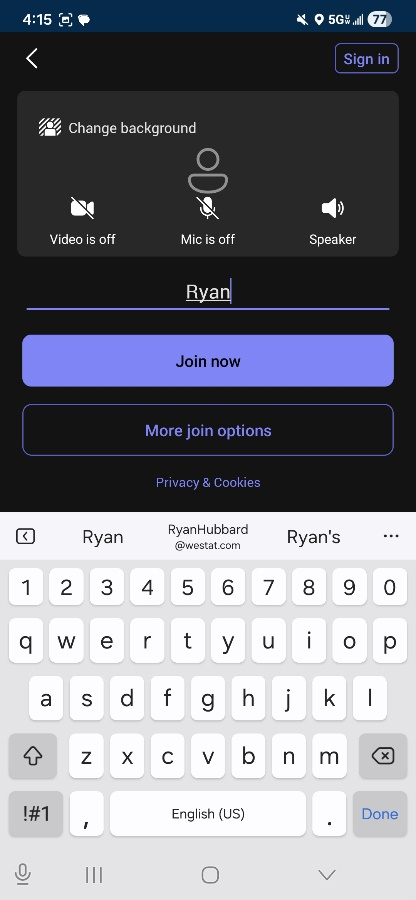
• Type in your name and click Join now to join the meeting.
Video Considerations:
• Please consider turning on your video camera for the entire interview
• Position yourself in a quiet location and be mindful of what is in your background and what can be seen behind you
• If necessary, press the "mic is off" button to take yourself off mute, so that the interviewer can hear you when you speak